
Xero Credit Note Allocation: Why It's Still Manual
Allocating a supplier credit note means applying available credit to outstanding purchase bills in Xero. The amount allocated reduces those bills’ remaining payable balances, so you can check how much cash is still due.
This guide covers credits received from suppliers against purchase bills, not customer credits against sales invoices. Start with the Xero steps below, then review how credit-only and credit-plus-cash outcomes affect a larger payment run.
What is Xero credit note allocation?
Allocation links a supplier credit note to one or more outstanding bills. It reduces the balance due on each bill by the amount applied; any unused credit remains available rather than being consumed by a smaller bill.
Supplier credit notes commonly arise from returned goods, pricing adjustments or invoice corrections. They are accounting records in their own right. Applying one to a bill determines how much of that bill is covered by credit and how much remains payable.
How to Allocate a Supplier Credit Note in Xero
To apply an existing supplier credit note to an outstanding bill in Xero:
- 1Open Purchases, select Bills, then open the Awaiting Payment tab.
- 2Find and open the supplier credit note you want to apply.
- 3Open the options menu and select Allocate Credit.
- 4Enter the amount to credit beside the relevant outstanding bill or bills.
- 5Select Allocate Credit to confirm the allocation.
Xero documents the same workflow in its guide to applying a supplier's credit to a bill.
Can't see Allocate Credit?
Check that the credit and bill use the same supplier contact and currency, that the bill is awaiting payment with an outstanding balance, and that the credit still has an available balance. Lock-date restrictions depend on your user role and the dates of both transactions. See Xero’s supplier-credit troubleshooting guide for the applicable lock-date rules.
After allocating, check the remaining balance on each bill. A fully covered bill needs no cash payment; a partially covered bill still has a cash balance. For the implications across suppliers, see how supplier credits affect Xero batch payments.
Why This Becomes Difficult at Scale
Supplier credit note allocation in Xero is manageable at low volumes. But for operational businesses, the manual effort compounds quickly:
- High-volume suppliers with frequent returns — wholesale, manufacturing, and distribution businesses regularly process supplier credits for returned or defective goods
- Stock adjustments and inventory credits — price corrections, volume rebates, and credit adjustments accumulate across dozens of supplier accounts
- Construction and trade businesses with progress claims — variations, retention releases, and back-charges generate supplier credits that must be matched before payment
- Large batch payment runs with dozens of supplier credit notes — when a single payment cycle involves many suppliers, each credit adds selection, allocation and balance-checking work
The Manual Workflow Today
Across suppliers, the same work repeats: find available credits, choose the bills to cover, allocate the amounts and recheck the cash balance. The instructions above remain the same; the repetition grows with the number of credits and bills, rather than following a fixed time estimate.
Allocation strategy: Choosing the largest outstanding bill first is one approach, not a mandatory Xero rule. Allocate only the amount needed for the bills you intend to settle.
Why Users Ask for Bulk Credit Allocation
Users have also requested bulk credit allocation. An existing feature request on Xero's product ideas forum discusses invoice and bill credits. For supplier bills, the repeated selection and balance checks described above are the relevant payment-run work.
The request is for one view of multiple credits and bills, rather than repeating the standard credit-note-by-credit-note instructions.
Recurring runs also require a clear record of which bills were covered by credit and which still needed cash.
How Credit Note Allocation Works in Batchly
Batchly calculates eligible credit allocations and the remaining cash requirement for review. Credit-allocation results are recorded back in Xero as part of the payment-run workflow.
Available credits are processed oldest first against the largest selected bills first. This is Batchly’s allocation strategy, not a rule imposed by Xero. The calculation is separate from Xero writeback and any cash payment your team reviews and authorises through its bank.
Here's what that looks like in practice:
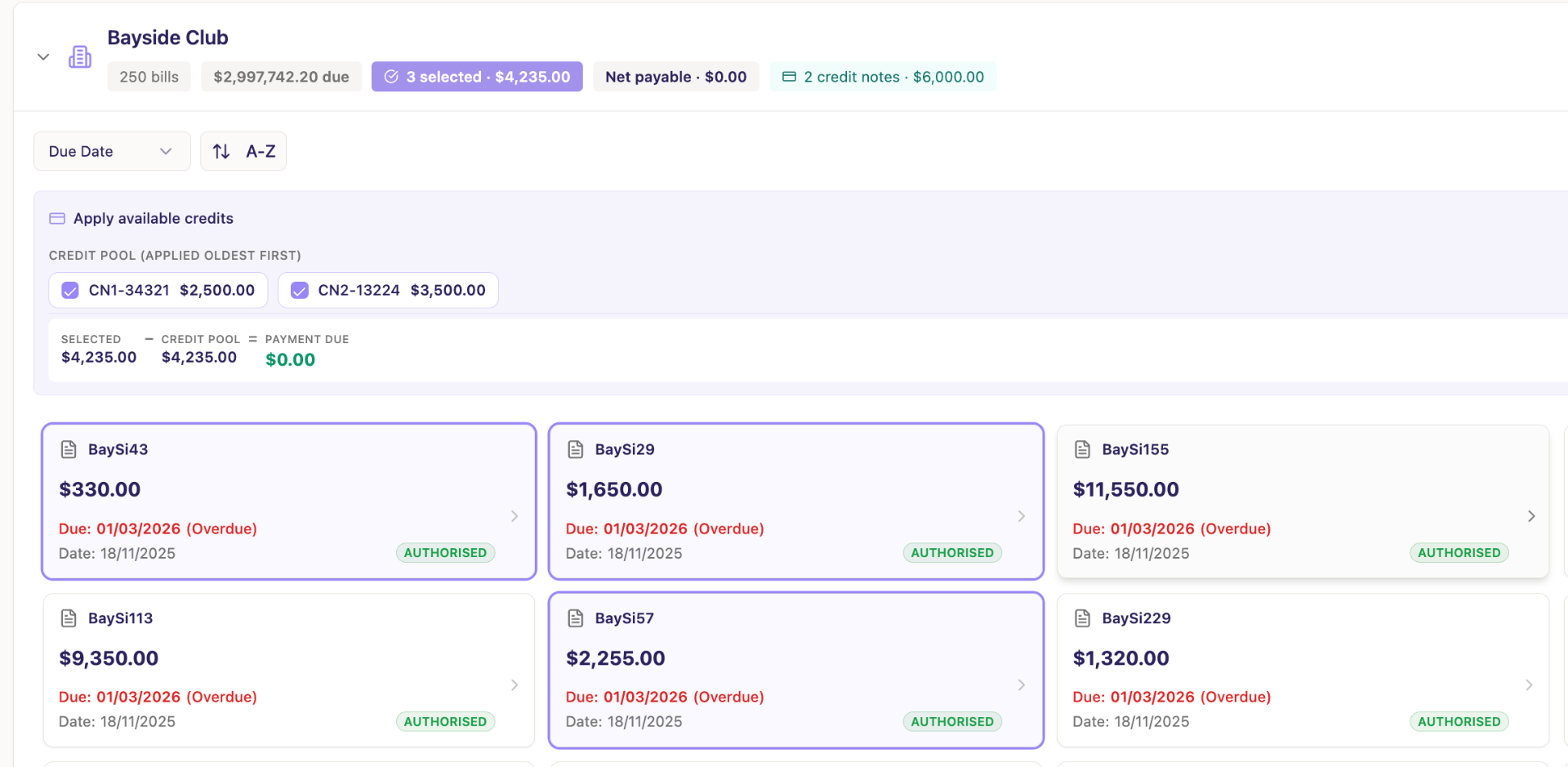
Multiple credit notes applied automatically, with the final net payable calculated before processing.
When multiple supplier credit notes are available, your team can choose which ones to apply. Batchly also supports same-currency credit allocation, so USD credit notes can be applied against USD bills in the same workflow.
Depending on eligible credits and the selected bills, the run can include:
- Surface available supplier credit notes per supplier during the workflow
- Choose which credit notes to apply when multiple credits are available
- Credit only — where the bill is fully covered by available credits
- Credit plus cash — where credits reduce the bill and the remaining balance is paid
- Cash only — where no credit applies and the full amount is paid as normal
- Generate remittances that clearly show credits and cash applied
Credit allocation and payment workflows depend on plan eligibility and the supported Xero organisation. Available bank-file formats depend on your region and selected bank. Credit-only outcomes do not require a cash-payment file.
For larger runs, the guide to managing more than 200 bills in Xero explains how bill selection, bank-file preparation and completion fit together.
Examples
Credit only
$800 bill
− $800 credit note
= $0 cash paid
Credit + cash
$1,200 bill
− $800 credit note
= $400 paid
Cash only
$1,200 bill
− no available credit
= $1,200 paid
Batchly calculates the outcome automatically before the workflow is completed.
Here’s how that looks when a credit only partially covers a bill:
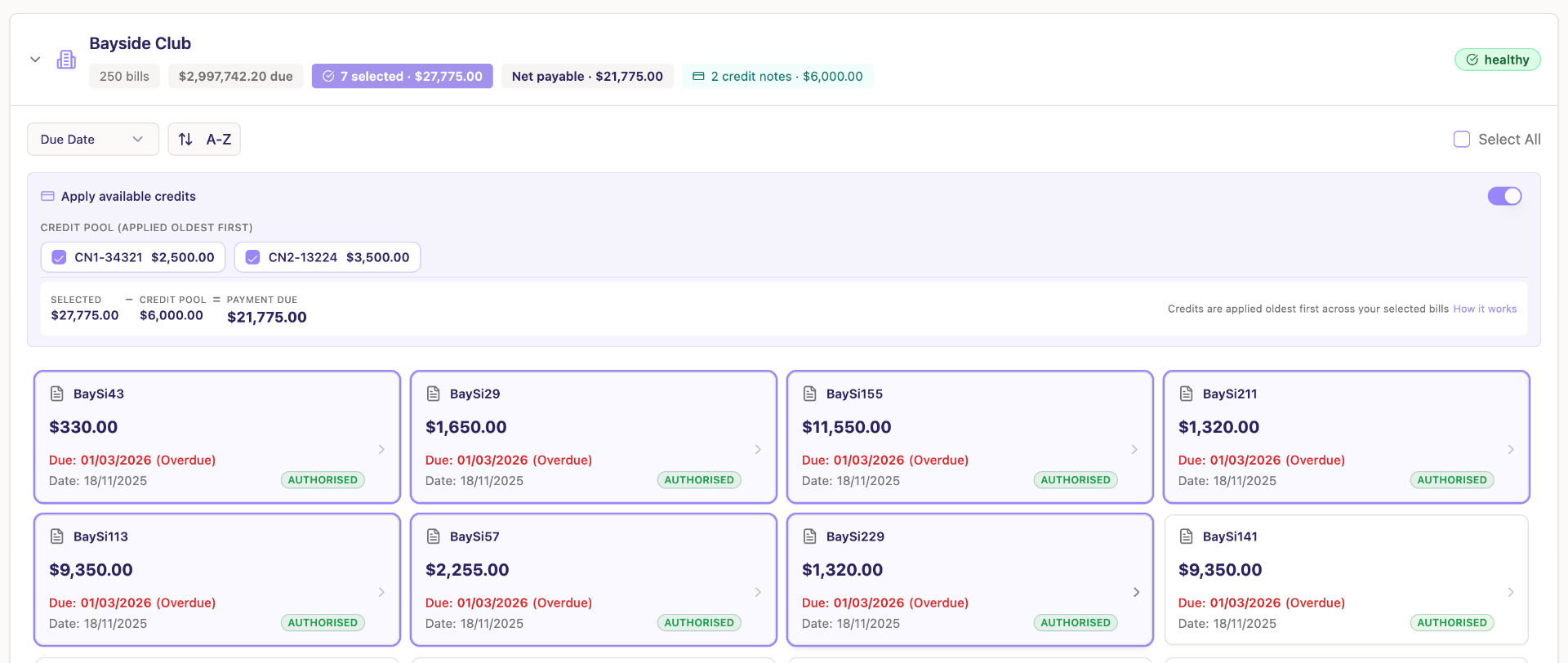
Credits reduce the bill automatically, with the remaining balance clearly shown before payment.
Why This Matters
When credits are handled as part of the workflow:
- Review available credits alongside the selected bills
- Check the cash balance after eligible credits
- Reduce repeated manual allocation work
- Retain a record of credit and cash outcomes
You can settle bills with credits, cash, or a mix — with the correct outcome already calculated.
Frequently asked questions
How do you allocate a supplier credit note to a bill in Xero?
Open Purchases, select Bills and the Awaiting Payment tab, then open the supplier credit note. From the options menu choose Allocate Credit, enter the amount beside the relevant bill, and select Allocate Credit to confirm.
Can you bulk allocate supplier credit notes in Xero?
No. Xero does not currently provide a built-in bulk allocation workflow. Supplier credit notes still need to be allocated manually to individual bills.
Do supplier credit notes reduce the amount payable automatically?
No. A supplier credit note must be allocated to a bill before it reduces the total payable in a batch payment run.
Why is supplier credit note allocation slow in Xero?
Because the process is manual. Teams must open each credit note, apply it to bills, and then recheck what is left to pay.
How does Batchly handle supplier credit notes?
Batchly calculates eligible credit allocations and the remaining cash requirement for review. Credit-allocation results are recorded back in Xero as part of the payment-run workflow.
If manual credit allocation slows your team down, Batchly handles that step inside the workflow.
Whether the outcome is credit only, credit plus cash, or cash only, your team can see it clearly before anything is processed.
Related reading
Xero Batch Payments: How to Pay More Than 200 Bills in Xero
How larger supplier payment runs stay structured while Xero remains the accounting system of record.
Read guideHow Many Suppliers Can You Pay in a Xero Batch Payment? (The Real Limits Explained)
The practical supplier and bill-selection limits teams encounter as Xero payment runs grow.
Read guideHow to Make Batch Payments in Xero (Step-by-Step for Growing Teams)
A practical step-by-step guide to preparing and completing supplier batch payments in Xero.
Read guideThe Xero 200-Bill Limit: What It Is, Why It Exists, and How High-Volume Teams Break Through It
What Xero's 200-bill cap means for high-volume payment runs and how finance teams work around it.
Read guideHow credit notes affect batch payments
How supplier credit notes affect the final cash amount in a Xero batch payment run.
Read guideHandle Xero Credit Allocation Without Manual Work
Batchly handles credit allocation inside the workflow, so your team can remove manual allocation work and see the correct outcome before processing.
Availability depends on your plan, Xero organisation and payment workflow.
- Apply credit notes automatically inside the workflow
- Choose which credit notes to apply when multiple credits are available
- Handle credit only, credit plus cash, or cash only outcomes
- Support same-currency credit allocation, including USD to USD
- Keep one clear record of what was offset and what was paid